
The latest improvements & new capabilities in Fluint.
Product Updates


Olli Knows Your Exit Criteria
Olli uses your sales process to guide deals forward, stage by stage.
Why it matters
Most sales teams invest real time defining their sales methodology, but that process rarely shows up where it actually matters: inside live deals. Reps forget exit criteria, managers repeat themselves, and coaching turns into generic advice instead of stage-specific guidance.
By teaching Olli your sales framework, you turn your methodology into something that actively guides every deal. Reps get clear direction on what needs to happen next, managers get consistency across the team, and your process stops living in a PDF no one opens.
This keeps deals moving forward and reduces the gap between how you want deals run and how they’re actually executed.
How it works
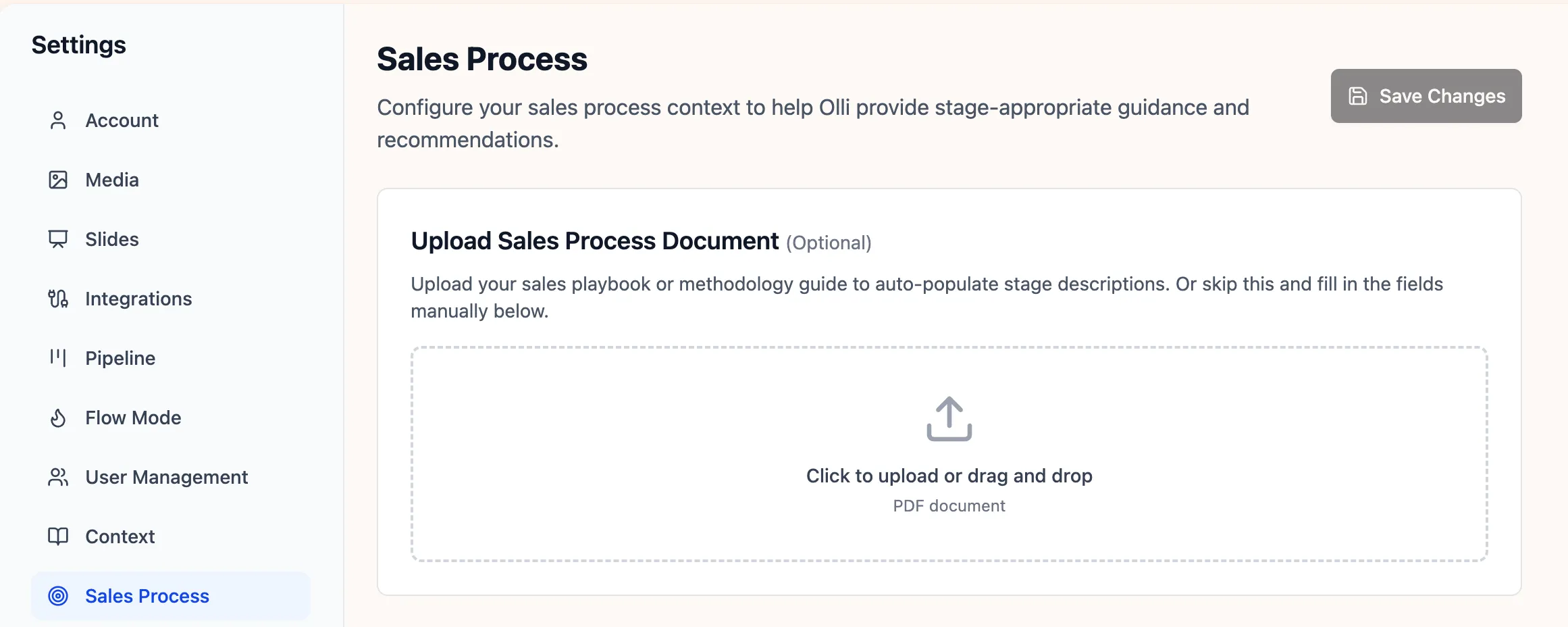
You can upload your sales methodology directly into Fluint, and Olli automatically maps it to your pipeline stages. Once it’s uploaded, your framework becomes the backbone of Olli’s coaching.
Olli always knows what stage a deal is in and provides guidance tied to that stage’s exit criteria. Instead of generic tips, reps get specific direction on what needs to happen to advance the deal.
Your internal process stays internal. The uploaded methodology teaches Olli how your team executes deals, not what reps say to buyers, so nothing bleeds into customer-facing messaging.
Getting Started
The settings page is only available to a Fluint workspace admin. They can upload or edit the sales process details for their entire org.
- Go to Settings → Sales Process
- Upload your sales methodology document (PDF only)
- Review how Olli mapped your stages
- Adjust descriptions or exit criteria if needed
- Save your changes
- Olli starts giving stage-appropriate guidance on the next call
Flow Mode Email Notifications
Get proactive deal recommendations delivered straight to your inbox.
Why it matters
Reps don’t need more dashboards to check. They need the right nudge at the right moment. Important prep gets missed not because people don’t care, but because context is scattered across calendars, deals, and tools.
Flow Mode email notifications bring Olli to you. Instead of pulling insights manually, you get timely recommendations based on your actual deals and upcoming meetings. The result is better preparation, fewer missed follow-ups, and more consistent execution without adding work to your day.
How it works
Olli monitors your calendar and deal activity to understand what’s coming up and what needs attention. Based on that context, it sends proactive recommendations instead of waiting for you to ask.
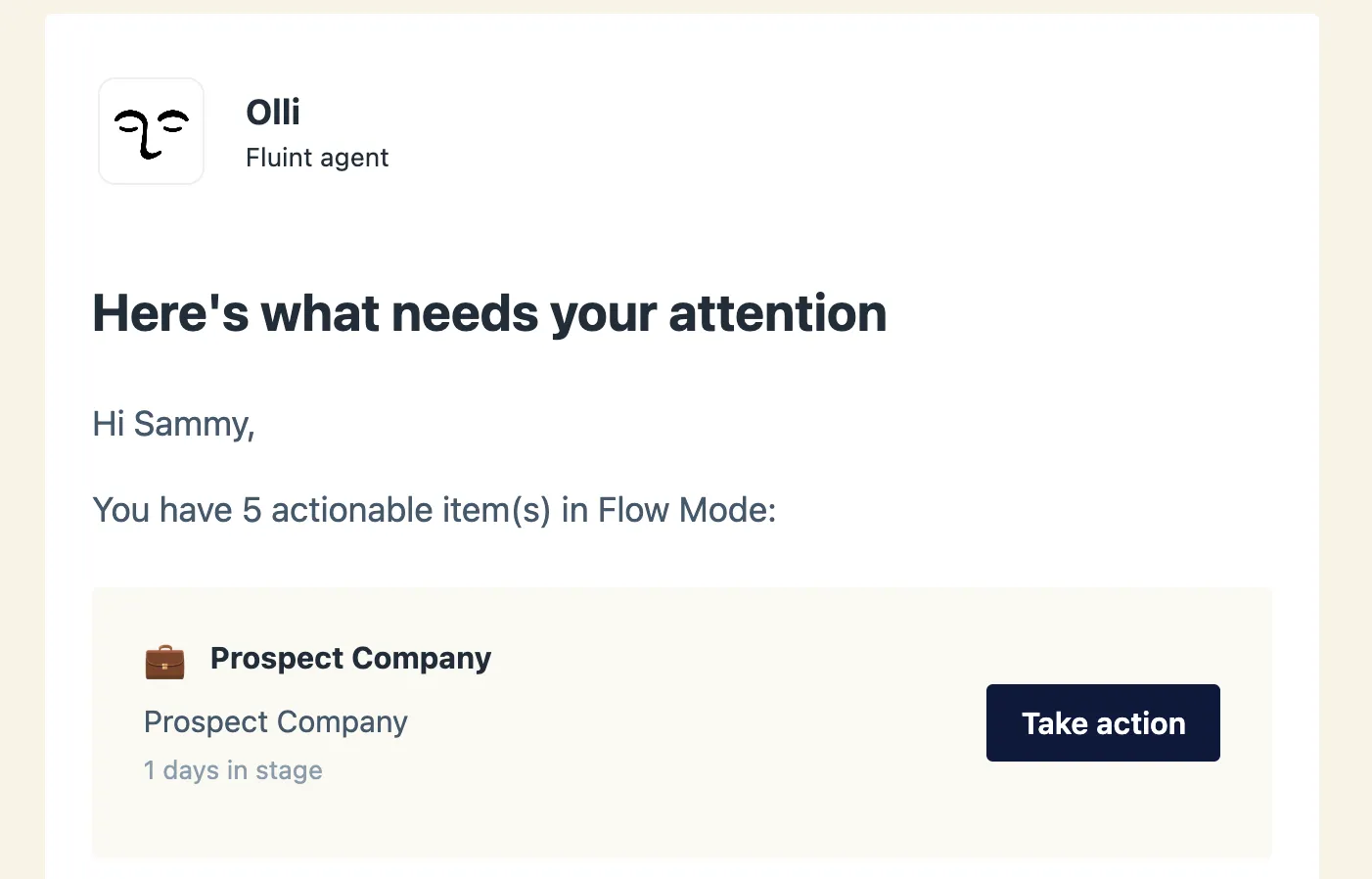
You’ll receive a daily digest email with prioritized suggestions tied to meetings happening in the next 24 hours. Each recommendation is grounded in where the deal sits in the cycle, pulling in relevant context and decision-maker details automatically.
Every recommendation links directly into Flow Mode. One click takes you straight to the right prompt, already running, so you can act immediately instead of re-orienting.
Olli also keeps a history of past recommendations, making it easy to review what’s been suggested over time and track progress across deals.
Getting started
- Navigate to Flow Mode settings
- Toggle on "Enable Notifications"
- While you're in settings, switch to the Integrations -> Individual Integrations page to connect your calendar
- You'll start receiving digest emails when you have upcoming meetings or new deal activity
- Click recommendations in your email to jump straight into Flow Mode
Olli Slack Integration
Ask Olli questions and get deal insights without leaving Slack.
Why it matters
Sales conversations don’t just live in CRM notes or meeting recaps. They happen in Slack, in threads, in quick questions between calls, and in moments where context matters but time is short.
The Olli Slack Integration brings deal intelligence directly into those conversations. Instead of switching tools or breaking focus, your team can get answers, insights, and next steps right where they’re already working. This keeps momentum high and makes it easier for reps to act in the moment, not after the fact.
How it works
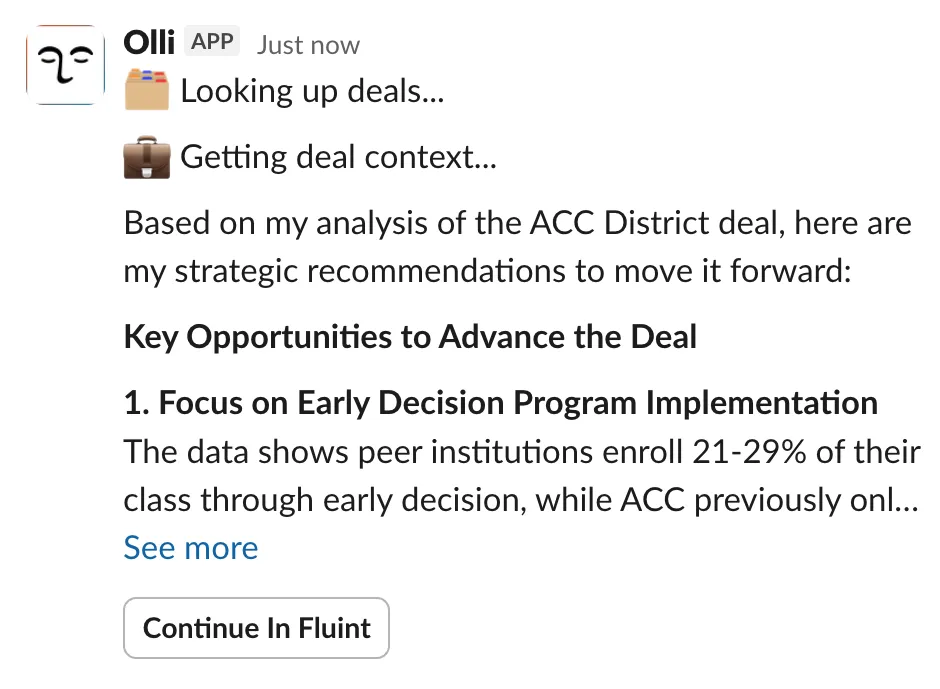
Olli lives directly inside Slack and can be summoned anywhere with a simple @mention. Whether you’re in a channel, a thread, or a direct message, Olli responds inline so the conversation keeps flowing.
Olli is thread-aware, meaning he understands the context of the discussion and remembers what deal or details you’re talking about. You can ask follow-up questions naturally without re-explaining everything.
You can share files directly with Olli in Slack or reference files already shared in the thread. Olli can analyze documents and images in place, making it easy to work through materials without leaving the conversation.
Olli also includes interactive buttons in responses for common actions, like jumping to deals or opening documents with a single click. For quick commands, slash commands let you explore what Olli can do, check your account status, or ask a question instantly.
Getting Started
A Fluint workspace admin must install the Olli app to your Slack workspace (*Only available for team license plans):
- Go to Settings → Integrations in Fluint
- Find the Slack integration and click Install
- Authorize the Olli app for your Slack workspace
- Once installed, all workspace members can link their accounts
- That's it — happy chatting!
Custom Framework Wizard
A faster, guided way to create custom frameworks in Fluint.
Why it matters
Custom frameworks are powerful, but creating them has historically been intimidating. Starting from a blank editor forces teams to guess at structure, tone, and output before they even know what they want to generate. That friction slows adoption and keeps good ideas from ever becoming usable frameworks.
The Custom Framework Wizard removes that barrier. Instead of wrestling with an empty page, you’re guided step by step through the decisions that actually matter. This makes it faster to create consistent, reusable frameworks and easier for teams to standardize how documents get generated across deals.
How it works
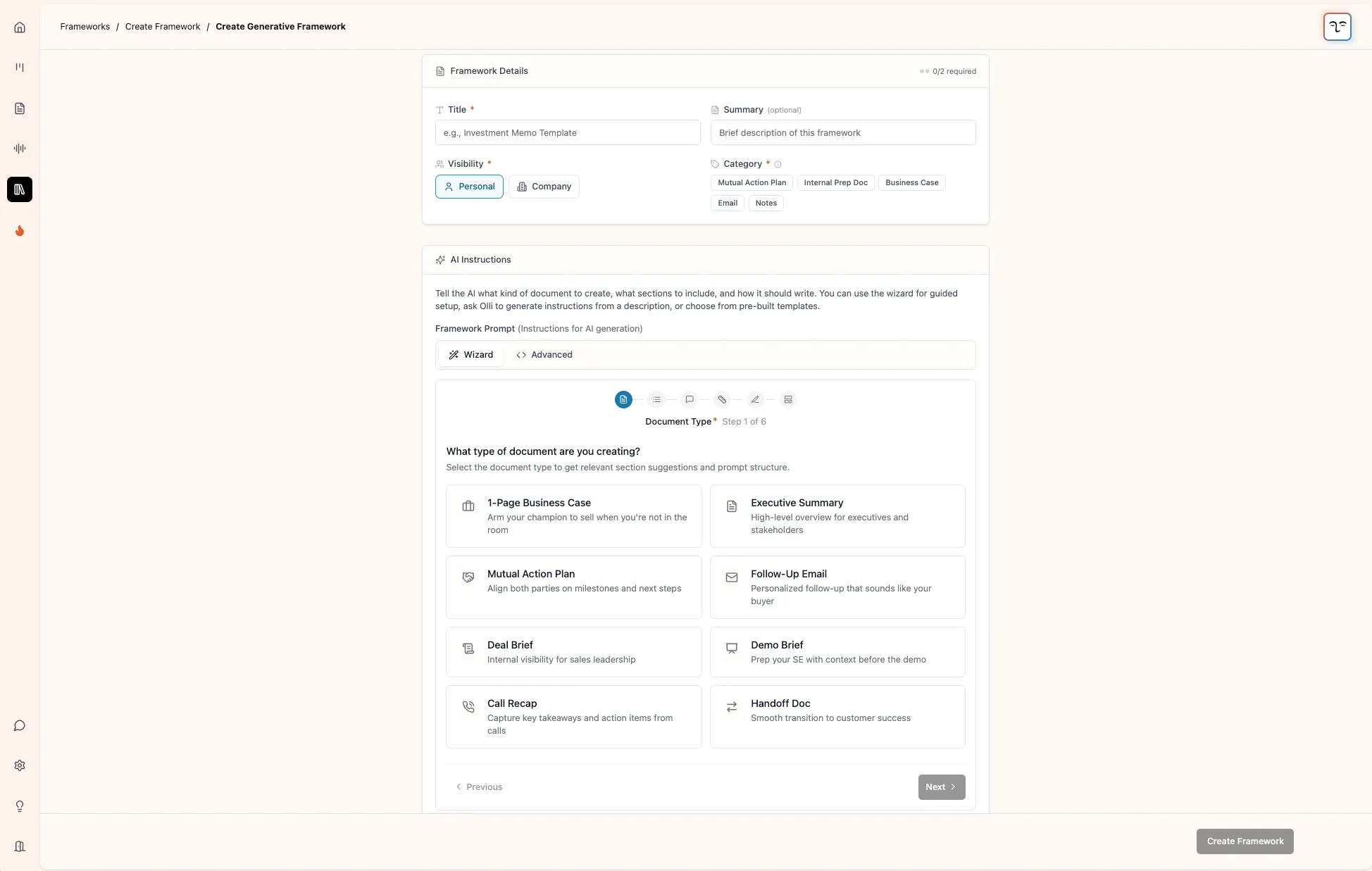
The new wizard walks you through framework creation in a clear, six-step flow. You define the document type, sections, tone, length, custom instructions, and output structure in sequence, so nothing is left to guesswork.
You can start from pre-built templates for common use cases like business cases, executive summaries, MAPs, and follow-up emails, then customize from there. Sections can be enabled, disabled, reordered with drag-and-drop, or replaced with your own custom sections.
As you build, you can preview the output structure visually, so you know exactly what the final document will look like before you generate it.
Creating a framework from an existing document is also streamlined. The entire flow now happens in an inline modal instead of redirecting you away. You can create the framework, edit it, and immediately use it on another deal with the framework already selected. In most cases, your new framework is ready to use in seconds.
Getting Started
- Go to Framework Library → + Custom Framework
- Choose Create Generative Framework
- Use the Wizard tab for guided setup or Advanced tab for raw editing
Note: Only Admins can create org-level frameworks.
Chat Flows
Save and run multi-step Olli workflows with a single slash command.
Why it matters
Some of the most valuable work with Olli happens across multiple steps. Reps ask a series of questions, generate documents, refine outputs, and repeat the same patterns deal after deal. Until now, that knowledge lived in individual chats and had to be rebuilt every time.
Chat Flows let you turn those repeatable patterns into reusable workflows. Instead of retyping prompts or recreating sequences from memory, you can run complex, multi-step workflows with a single command. This saves time, reduces inconsistency, and helps teams scale what actually works.
How it works
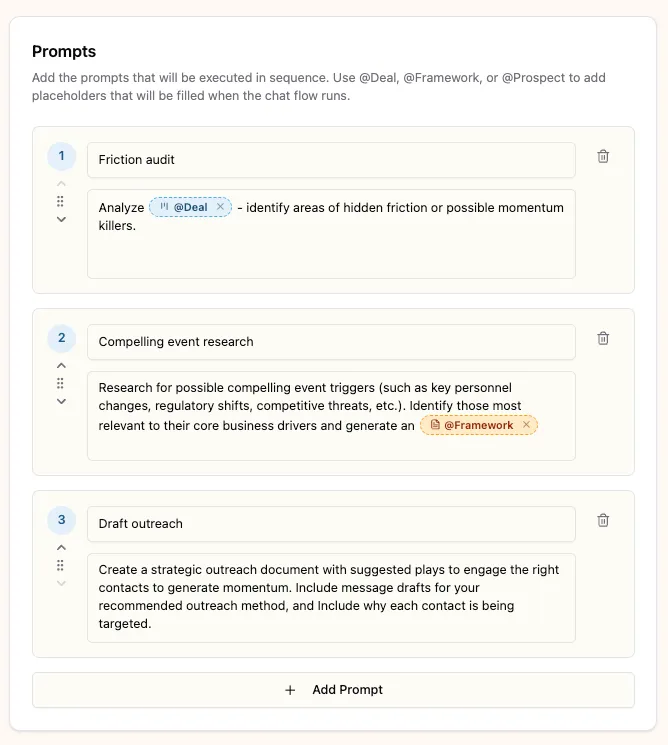
Chat Flows allow you to save a sequence of prompts and run them on demand. You can launch any flow instantly by typing a slash command in chat, making workflows easy to discover and execute.
Prompts support dynamic placeholders like deals, frameworks, prospects, or meetings. When you run a flow, you choose the specific resources you want to use. This makes the same workflow reusable across different deals while still staying context-aware. You can even generate multiple documents in a single flow by referencing more than one framework.
Chat Flows can automatically save generated documents to a deal, keeping outputs organized without extra steps. If a flow needs a deal and one isn’t specified, you’ll be prompted to select it at runtime.
You can also save a great chat as a reusable flow directly from the conversation. Visibility controls let you keep flows private or share them with your organization, with admins able to manage shared flows while private ones remain owner-only.
Getting Started
- Click Chat Flows in the sidebar to create a new Chat Flow
- Type / in any chat to run a chat flow (or click the / button in the chat toolbar)
- Or save an existing conversation as a chat flow from the chat toolbar
Enhanced Salesforce Email Sync
Capture more Salesforce emails for better deal context.
Why it matters
Email is where a huge amount of deal context lives. When emails don’t sync cleanly, important conversations go missing, timelines get fragmented, and coaching loses accuracy. Teams end up working with an incomplete picture of what’s actually happening inside a deal.
The enhanced Salesforce email sync captures more of that context automatically. By pulling emails from additional Salesforce objects, Fluint can reflect real deal activity more reliably, even in orgs with different email logging setups. That means better visibility, stronger insights, and fewer gaps in the story of each deal.
How it works
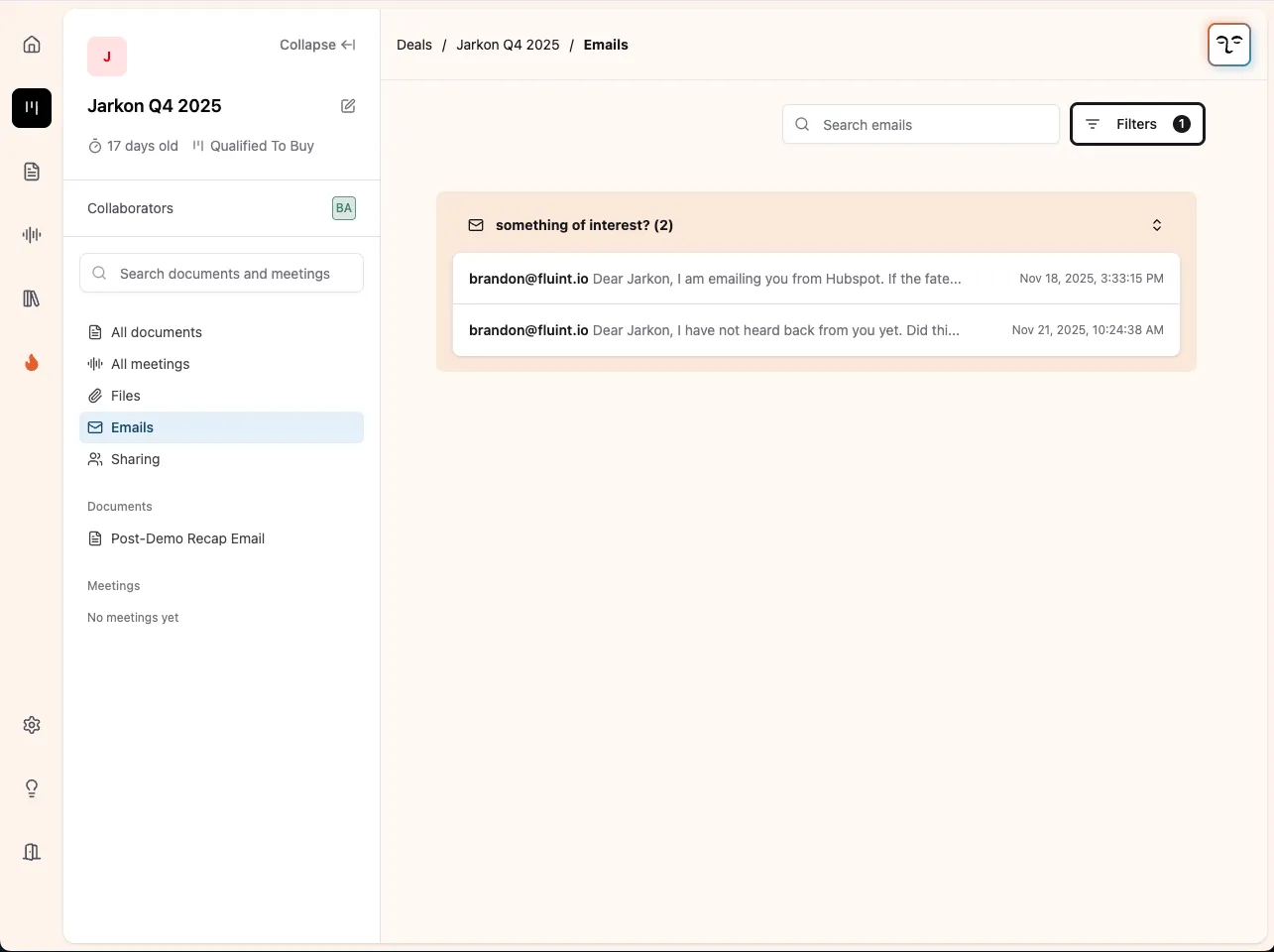
Fluint now syncs emails from both the Email and Task objects in Salesforce. This ensures emails are captured whether your org uses Enhanced Email or logs emails as activities, reducing the chance that important conversations are missed.
To support this, we’ve also expanded the set of Salesforce objects we sync behind the scenes, including Contacts, Accounts, Tasks, and Events. These additional objects provide richer context for deals today and lay the groundwork for deeper Salesforce-powered features in the future.

Let’s see if there’s a good fit
We’ll look at how other GTM teams are already: